Build inventory software with AI for the PC in your stock room
Stock control starts in a spreadsheet, and then the spreadsheet grows until nobody knows which copy is right. In Windows Studio you describe your stock room and get desktop software: a product list, a field you scan barcodes into, a history of every movement, and reports. It runs on the stock-room PC even if there is no internet there.
Three things a spreadsheet does not know
Who changed the number
In a sheet the quantity is a cell anyone can overwrite. In software the quantity is the result of recorded movements: received, sold, adjusted.
That an item is the same item
“Cups 8” and “paper cup 8oz” are one item typed twice. A barcode makes an item one item.
That two people work at once
Two copies of the file mean two inventories. One database means one number everyone sees.
The product list and barcode input
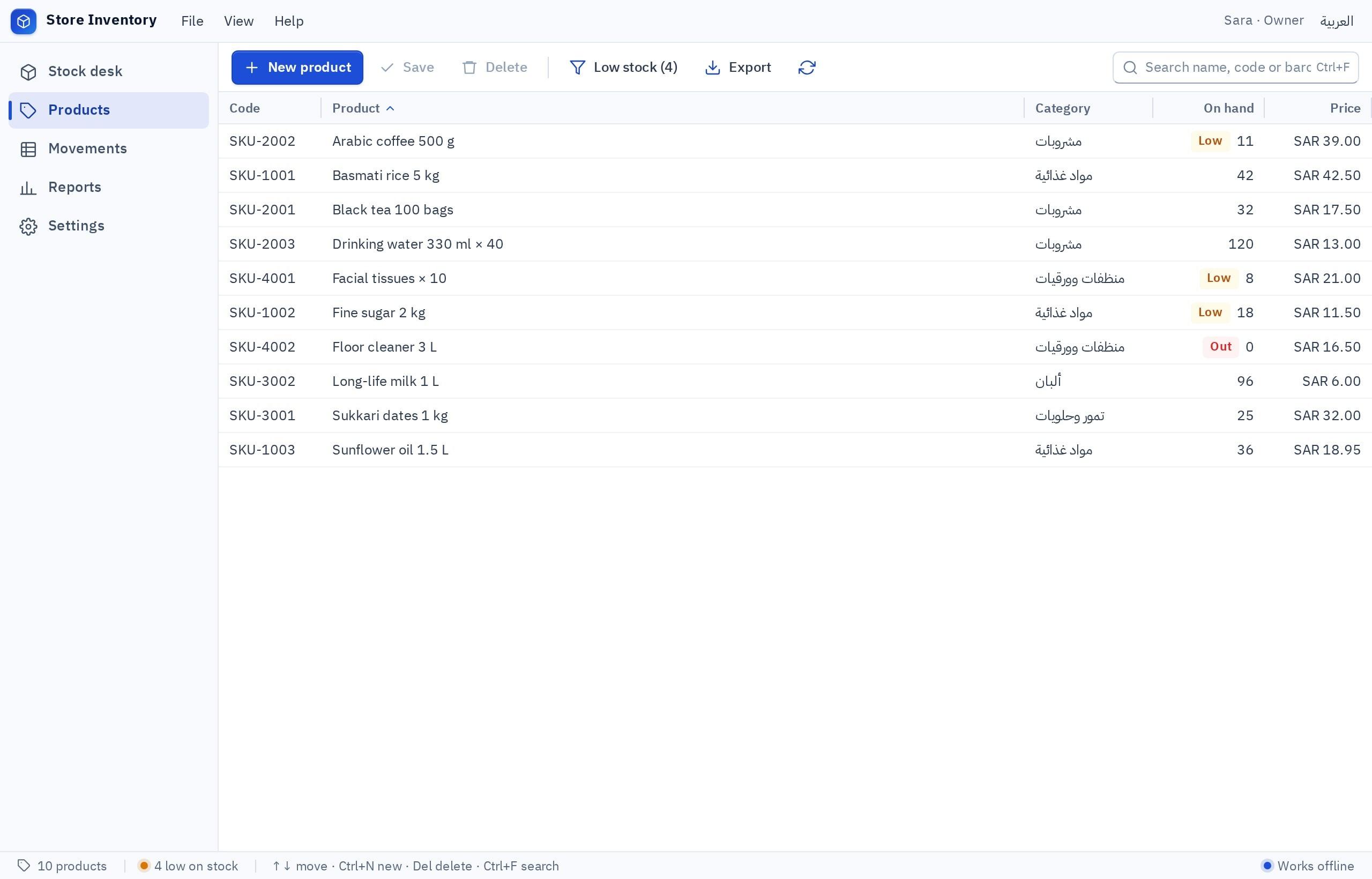
A dense product grid with codes and quantities that you sort and search from the keyboard. At the top is a barcode field: scan the item with the reader and it opens at once. The scanner needs no special setup as long as it types the code like a keyboard, which most USB scanners do.
- A grid you sort and select with the keyboard
- Scan or type: the same field
- Ask for the columns you need: supplier, shelf, expiry date
Stock movements: quantities do not change by themselves
Every change to a quantity is a movement with a reason: received from a supplier, sold, adjusted for damage or for a counting difference. The movement stays in the history, so when someone asks “where did six boxes go?” you look it up instead of guessing.
- Stock adjustments with a written reason
- A full history for every item
- Ask for the employee’s name to be recorded on every movement
Reports that answer the owner’s questions
What is in stock now? What moved this month? What needs reordering? The template comes with stock reports, and you ask for your own in a sentence. With the Files ability you export a report to a file for your accountant; with Printing you print it.
- Stock reports from the template
- Ask for a “needs reordering” list with a threshold you set
- Export to a file through the Windows Save dialog
One stock room on one PC, or a team on several?
If the stock keeper alone records movements on one PC, Local mode is enough and works offline. If receiving happens on one PC and selling on another, both must see the same quantity: that is when you need Fanann Cloud. One app installed on two PCs in Local mode means two different inventories.
- Local: one PC, no internet, with regular backups
- Cloud: several employees, one number
- Decide before entering your items: changing later is a migration
Spreadsheet vs inventory software: when to move
A spreadsheet is not a mistake. It is right up to a point, and these are the signs you have passed it.
| Question | A spreadsheet | Inventory software you build |
|---|---|---|
| Who changed a quantity, and when? | Unknown | Every movement is in the history |
| Finding an item | Searching the rows by hand | Scanning the barcode opens it |
| Two people working at once | Two copies that conflict | One database in Cloud mode |
| Preventing mistakes | Any cell accepts anything | Fields with rules: numbers only, and no negative stock if you ask for it |
| Cost and effort | Next to nothing | Time to describe and review it, and build allowance from your plan |
If you have twenty items and one person, stay on the sheet. Move when “which number is right?” becomes a regular question.
Three stock rooms, three pieces of software
A retail shop
Hundreds of items with factory barcodes. What matters is fast receiving and knowing what ran low. Two staff on two PCs, so the data goes in the cloud.
“I receive goods by scanning the barcode and typing the quantity, and I see what fell below its limit.”
A spare-parts warehouse
Items with long part numbers and shelf locations. One stock keeper and one PC with no internet: Local mode, and a backup every week.
“Every part with its number and shelf location, and I search by part number.”
A store of dated goods
Food or supplies with an expiry date. You ask for an expiry-date column and a report of what expires within a month.
“Add an expiry date to every receipt, and a report of what expires within 30 days.”
How to build your inventory software in six steps
From the old sheet to software on the stock-room PC.
- 1
Start from the inventory template or your own description
Open “Retail inventory” in the Windows templates, or write how your stock room works: what the items are, who records, which reports.
- 2
Decide the item fields
Code, name, quantity, and whatever is yours: supplier, shelf, purchase price, expiry date. Ask for them in plain words.
- 3
Run a day of movements in the preview
Receive an item, sell some, adjust for damage, then open the item’s history and check the whole story is there.
- 4
Choose where the data lives
One PC: on this computer. More than one PC recording movements: Fanann Cloud. Then confirm.
- 5
Switch on abilities and build
Files for export and import, Printing for reports, Backup in Local mode. Then build the installer.
- 6
Install and test the scanner
Install the app on the stock-room PC and scan a few items with your reader to confirm the code lands in the field. Enter your real stock after that, not before.
Plainly: what this inventory software does not do
Questions people ask
Can I build inventory software without coding?
Will it work with my barcode scanner?
Can I import my items from Excel?
Does the inventory software work offline?
What if the stock-room PC breaks?
Does it handle more than one warehouse?
The rest of Windows Studio
AI Windows app builder
The main page: describe your business software in plain words, watch it take shape in a Windows window, choose where its data lives and download a real installer.
Meet Windows StudioBuild a Windows app with AI
The steps in plain language with a worked example: from one sentence about the job, to an interactive preview, to the data choice, to the installer.
See the detailsAI desktop app builder
When desktop software beats a website: working offline, speed at the counter, printers and files, and data that is local or shared.
See the detailsCreate an EXE installer with AI
What is inside the installer, how to install it on more PCs, how versions work, and how to verify the file.
See the detailsAI POS software builder
A point of sale for a restaurant or shop: orders, receipts, the printer, and how staff see the same orders on more than one PC.
See the detailsWindows app templates
Eight starting points you can change: POS, inventory, invoicing, expenses, front desk, attendance, labels and a file organizer, each with a suggested data location.
See the detailsCompare: local vs cloud data
The decision guide: where should your app’s data live? A comparison table, real scenarios, costs, and why five PCs do not share a local database.
See the detailsGuide: Windows app from idea to EXE
A long-form guide for business owners: writing the brief, reviewing the preview, choosing the data location, building the installer, sharing and updating it.
Read the guideOne right number for every item.
Describe your stock room, run a day of movements in the preview, then download the inventory software for your stock-room PC. Signing up is free.