Build POS software with AI that fits your counter
Boxed till software makes you work its way: menus that are not your menu, steps you do not need. In Windows Studio you describe how selling really happens at your place and get a point of sale for Windows: orders by tapping, a receipt that prints, a report of today’s sales. And the choice is yours: one till that works offline, or several that see the same orders.
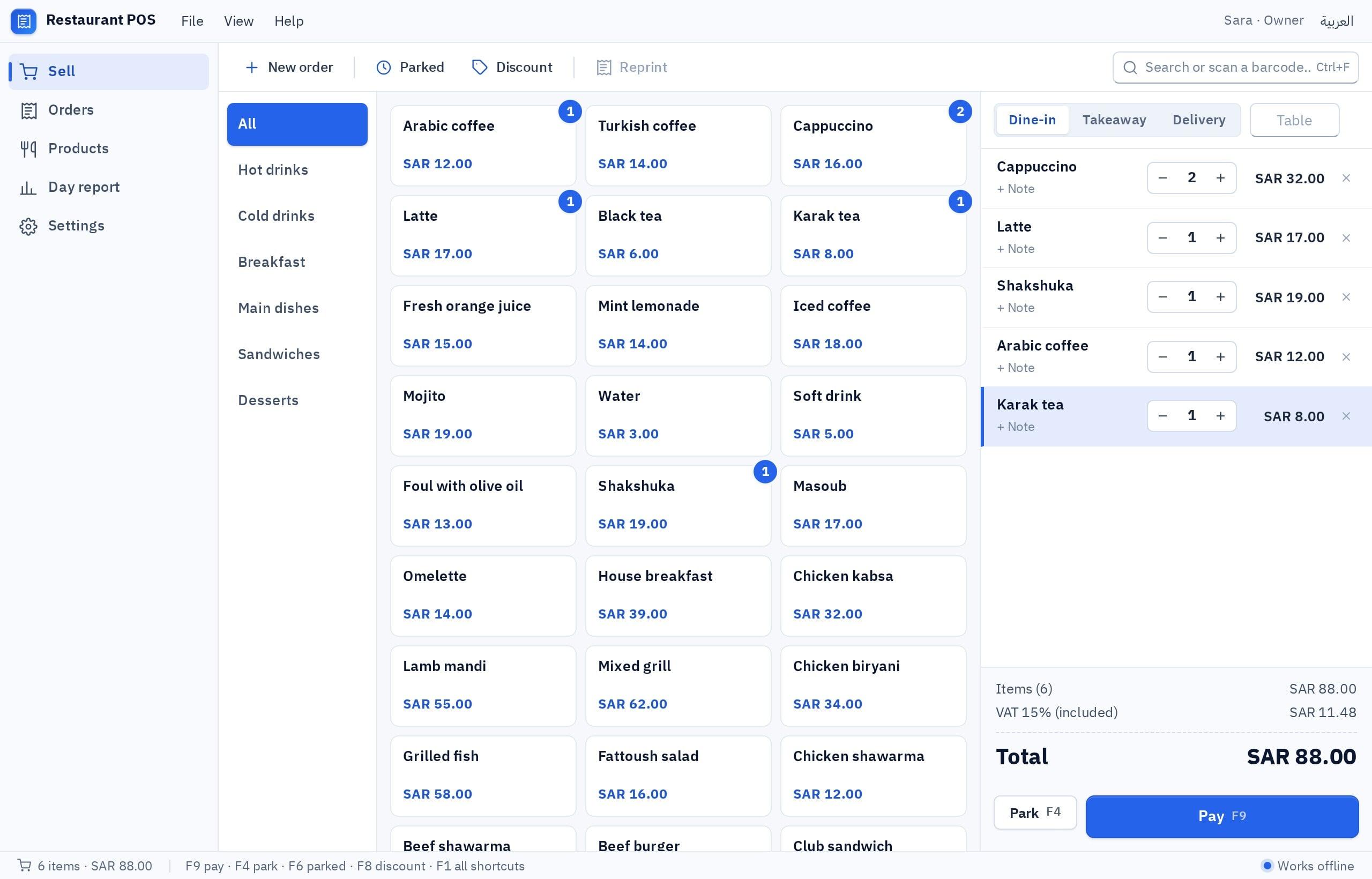
Three things any point of sale has to get right
It has to look like your menu
Your items, categories, sizes and extras the way you sell them, not the way a generic product imagined them.
It must not stop at rush hour
If selling cannot survive a dropped connection, Local mode keeps the till working with the data on the machine itself.
The numbers need one source
Two tills selling must add up in one report. That is the data-location decision, and it is explained to you before you build.
The sales screen: from the first tap to “Pay”
Products are tiles you tap, sorted into categories. Each tap adds a line to the open order, and the total and tax update at once. Change a quantity, remove a line, close the order. The screen is designed for someone standing and in a hurry: big targets and no extra windows.
- Products and categories you manage yourself
- Total and tax worked out automatically
- Saved invoices you can go back to
Receipts and printers: what works, and what you should test
The receipt has its own 80 mm print layout, designed for paper rather than a screenshot of the screen. Printing goes through the printers installed in Windows: if your receipt printer prints from other Windows programs, it will most likely print from the POS. Try it on your own printer before opening day.
- Shop name, items, tax and total on the receipt
- Switch on the Printing ability in the studio before building
- A4 invoices for customers who ask for one
Two tills or more: everyone sees the same orders
In Fanann Cloud mode every installed copy connects to one database of your app’s own. The first cashier opens an order and the second can see it; the manager sees both tills’ sales in one report from the office. Each employee signs in with their own account. The trade-off: the tills need internet to work.
- One report for all tills
- An account for each employee
- Uses your plan’s cloud allowance
Change it with a sentence when your business changes
Added delivery? Ask: “add an order type: dine-in, takeaway or delivery”. Want a staff discount? “Add a percentage discount button.” Try the change in the preview, then build a new version and install it. No waiting for a software company, and no “customization” invoice.
- Changes by chat, or by clicking the element
- Every version with its number and notes
- Arabic and English in the interface and on the receipt
One till or several: where your POS data should live
The template asks you this before the first build. These are the common cases and what we suggest for each.
| Your situation | On this computer | Fanann Cloud |
|---|---|---|
| One till, unreliable internet | A good fit. Sells with no connection; the data is on the machine | Stops when the internet drops |
| Two tills in the same shop | Each till has its own orders and report: you add up by hand | A good fit. One set of orders, one report |
| Two branches in two cities | Not suitable by itself: nothing connects the branches | A good fit. The owner sees both branches from any PC |
| A kiosk or food truck | A good fit. Depends on no network | Needs a steady connection |
There is no mode that works offline and syncs later. Choose by what you cannot give up: selling without a connection, or shared numbers.
Three points of sale, three different requests
They all start from the same template and part ways at the sentence you write.
A café with tables
An order is tied to a table number and stays open until the guest asks for the bill. Two tills: one at the counter and one with the waiter.
“Orders by table that stay open, and two tills that see the same orders.”
A grocery or shop
Selling by scanning barcodes rather than tapping, with stock going down on every sale. One till is enough, and it must work offline.
“I scan the barcode and the item is added; stock goes down with every sale.”
A food truck
A short menu, big buttons, a small receipt. No network to count on at the pitch, so the data is local with a backup every evening.
“Eight items with big buttons, an 80 mm receipt, and it works offline.”
How to build your POS software in six steps
From the template to a till working on your counter.
- 1
Open the POS template
Start from “Restaurant POS & invoicing” in the Windows templates, or describe your point of sale from scratch.
- 2
Enter your menu
Add your categories, items, prices and tax rate. Ask Fanann for what is specific to you: sizes, extras, order types.
- 3
Run a whole order in the preview
Open an order, add items, change a quantity, remove a line, close it. Whatever slows you down now will slow the cashier a hundred times a day.
- 4
Choose where the data lives
One till: on this computer. More than one till that must see the same orders: Fanann Cloud. Then confirm.
- 5
Switch on printing and build
Switch on the Printing ability, name the app after your shop, and build the installer.
- 6
Install and test on the printer
Install the app on the counter PC and print a test receipt on your printer. Run it for a full day beside your current system before you drop that one.
Plainly: what this POS does not do
Questions people ask
Can I build POS software without coding?
Does the POS work offline?
Will it work with my receipt printer?
Does it support a barcode scanner?
How does the owner see sales from every till?
Is there a monthly fee per till?
The rest of Windows Studio
AI Windows app builder
The main page: describe your business software in plain words, watch it take shape in a Windows window, choose where its data lives and download a real installer.
Meet Windows StudioBuild a Windows app with AI
The steps in plain language with a worked example: from one sentence about the job, to an interactive preview, to the data choice, to the installer.
See the detailsAI desktop app builder
When desktop software beats a website: working offline, speed at the counter, printers and files, and data that is local or shared.
See the detailsCreate an EXE installer with AI
What is inside the installer, how to install it on more PCs, how versions work, and how to verify the file.
See the detailsAI inventory software builder
Inventory software on Windows: products, barcode input, stock movements and their history, reports, and when local data is enough.
See the detailsWindows app templates
Eight starting points you can change: POS, inventory, invoicing, expenses, front desk, attendance, labels and a file organizer, each with a suggested data location.
See the detailsCompare: local vs cloud data
The decision guide: where should your app’s data live? A comparison table, real scenarios, costs, and why five PCs do not share a local database.
See the detailsGuide: Windows app from idea to EXE
A long-form guide for business owners: writing the brief, reviewing the preview, choosing the data location, building the installer, sharing and updating it.
Read the guideA point of sale that fits your shop, not the other way round.
Start from the POS template, enter your menu, run a whole order, then download the installer. Signing up is free.