To turn an idea into Windows software without coding: write one page describing who uses the software, what goes in and what comes out; build it in Fanann Windows Studio and review the preview with a real task; then decide where the data lives: on the PC for one machine that works offline, or Fanann Cloud for several machines that see the same records. After that, build the .exe installer, install it on a Windows PC and test it with real work before you share it.
First: is a desktop app the right tool?
Before you build anything, make sure you need software that is installed on a PC rather than a website. The difference is not how it looks; it is who uses it, and where. Desktop software is for your staff on work PCs. A website or mobile app is for your customers, and for people who work on the move.
- the users are your customers, not your staff
- they come in from their phones, or from anywhere
- the team is on Mac or mixed systems
- you change the software every few days
- staff work in it all day from a fixed PC
- it must keep working when the internet drops
- it prints receipts, labels or invoices
- its data has no reason to leave the PC
If you found yourself in the first column, that is fine: Fanann builds web and mobile apps too. If you are in the second, read on. The details are on the AI desktop app builder page.
The whole path at a glance
These are the seven stops between an idea and working software. The sections that follow go through each of them.
- 1Write the brief
One page: who uses the software, what goes into it, what comes out, and how many PCs will run it.
- 2Build the first preview
Paste the brief into Windows Studio, or start from a template. A Windows window appears that you can click through.
- 3Review with a real task, then refine
Carry out a task from your working day. Ask for what is missing in plain words, one round at a time.
- 4Decide where the data lives
On this computer, or Fanann Cloud. Confirm the choice before you enter real records.
- 5Switch on the abilities you need
Printing, files, notifications, backup: only what your app uses.
- 6Build the installer
Name the app, choose its icon and version number, read the estimate, then build. You get one .exe file and its result card.
- 7Install, test, then roll out
Install it on one Windows PC and run real work through it for a full day. After that, copy it to the other machines.
Write the brief: one page is enough
Do not write a requirements document. Write the way you would explain the job to a new employee on their first day. Five things matter most in a brief: the people, the daily task, what gets saved, what gets printed, and the number of PCs.
- The people
- Twelve employees who check in, and one manager who reads the reports.
- The daily task
- An employee presses “Check in” in the morning and “Check out” in the evening. Nothing else.
- What is saved
- The employee’s name, the check-in and check-out time, and an optional note.
- What is printed or exported
- A monthly report of each employee’s hours.
- Number of PCs
- A PC at the entrance for check-in and the manager’s PC for reports: two machines that must see the same records.
“Two machines that must see the same records” means the data will live in the cloud. Always write the number of PCs, even when it is one.
Do not worry about forgetting something. If the brief is incomplete, Fanann asks for what it needs, and it tells you what it assumed so you can correct it.
Review the preview like a user, not a designer
Within minutes the preview appears: your app inside a Windows window frame, with sample data. The common mistake here is to judge the colours. Colours change with a sentence. What deserves your time is the workflow: does the daily task get done in as few clicks as possible?
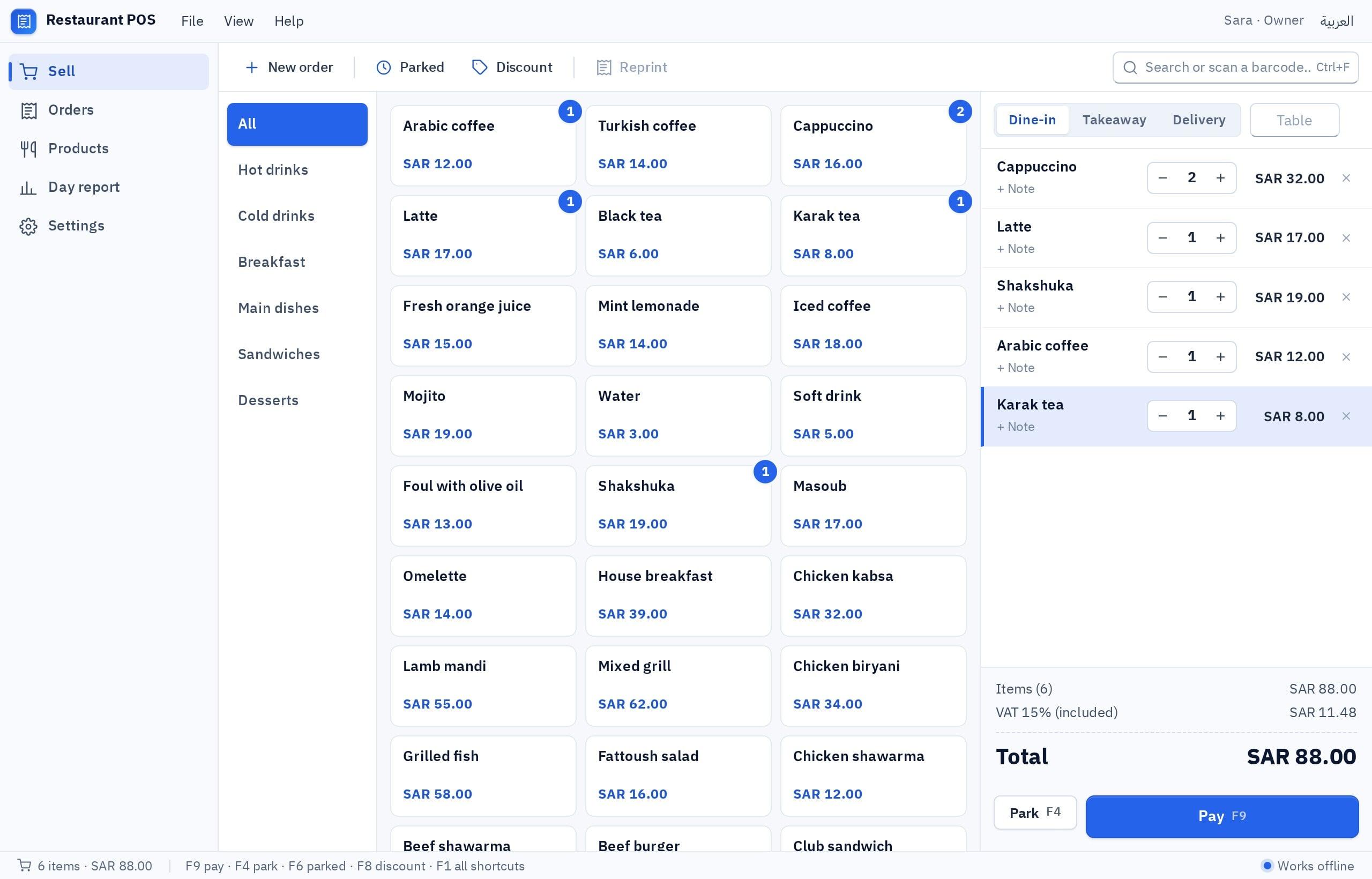
Illustration: the conversation beside the interactive preview in a Windows window.
- Carry out the daily task from start to finish with a real record from your business.
- Try the mistakes: leave a field empty, type a negative number. What does the software say?
- Try undoing: delete a record. Does it ask first?
- Open it empty, with no data. Is it obvious where to begin?
- Use it with the keyboard only, if the employee will be typing a lot.
- Switch the display scale to 125% and 150% if that is what the office screens use.
Ask for changes one at a time, in the language of the result rather than the implementation: “I want to see today’s total at the top of the screen” beats “add a component”. Or click the element itself in the preview and change it with the visual editor. Every version is saved, so do not be afraid to experiment.
The preview runs in the browser. Printing there is the browser’s print window, saving a file is an ordinary download, and a notification is a notice inside the page. It is evidence about the interface and the workflow, not evidence that the printer will print. You confirm that after installing.
Decide where the data lives
This is the one decision on the whole path that is hard to walk back, which is why the studio will not build the first installer until you confirm it. The two options:
| On this computer | Fanann Cloud | |
|---|---|---|
| Where the data is | In a database file on each PC | In one database of your app’s own |
| Internet | Not needed | Required |
| Several PCs | Each PC has its own separate data | Everyone sees the same records |
| Ongoing cost | No hosting charge for the database | From your plan’s cloud allowance |
| Backups | Your responsibility | The records are not on a single PC |
Illustration: two PCs in both modes. The numbers are examples.
Installing one .exe on five PCs in Local mode produces five separate databases. If everyone must see the same records, choose Cloud before anyone starts entering anything. The full decision guide.
In our attendance example two machines must see the same records, so the choice is Fanann Cloud. Had the software been a personal expense tracker, Local would be the answer without a second thought.
Switch on only what your app needs from Windows
A Windows program can do things a web page cannot, and for that very reason each ability is off until you switch it on. The studio tells you what your app actually uses, and warns you if it uses an ability you have not enabled.
| Ability | What it allows | Switch it on if… |
|---|---|---|
| Printing | Printing on the printers installed in Windows | your app prints receipts, invoices or reports |
| Files | Saving and opening a file through the Windows dialog you choose from | you export reports or import lists |
| Notifications | Showing Windows notifications | there is something the employee has to be alerted to |
| Backup | Saving a copy of the local data and restoring it | your data is on the PC (Local mode) |
The rule: the least that is enough. The attendance app in our example needs Files to export the monthly report, and nothing else.
Build the installer and read its result card
When you are happy with the preview, open Build & Release. Name the app, choose its icon, enter the version number (start at 1.0.0) and a short note about what is in it. Before you press Build you see an approximate estimate of what the build will use from your credits and your monthly allowance. Then the app is bundled, packaged and stored in your workspace.
Illustration of the result card. The file name, size and checksum are examples.
- File name
- <App>-Setup-<version>.exe. The name alone tells you which version you are holding.
- System
- Windows 10 and 11, 64-bit. It does not run on anything else.
- Checksum (SHA-256)
- The file’s fingerprint. Copy it and keep it: it is how you later confirm the file has not changed.
- Built / Tested on Windows
- “Built”: the file is ready. “Tested on Windows”: it was really installed and started on a Windows machine. The first does not imply the second.
Builds count against your allowance; the preview does not. Collect your changes in the preview and build when you have something worth trying on a real PC. A build that fails is not charged.
Install on one PC and test with real work
Download the file from your workspace and run it on a Windows PC. It installs for the current user, so it does not ask for an administrator password. If the file reached this PC as a copy, compare its checksum first:
- Open a command prompt in the file’s folder and type: certutil -hashfile YourFile.exe SHA256
- Compare the output with the checksum on the build card. They must match character for character.
- If they match: run the installer. If they differ: delete the file and download it again from your workspace.
Once it is installed, do not stop at opening it. This is the first real test of everything the preview could not show you:
- Print on the printer that will actually be used, on the actual paper.
- Save a file and open it from where you saved it.
- In Local mode: disconnect the internet and work. Then close and reopen the app: is the data still there?
- In Cloud mode: sign in from a second PC and check that it sees what you entered on the first.
- In Local mode: take a backup, then restore it. A backup you have never restored is not a backup.
- Run it for a full day beside your current method before you drop that method.
After launch: backups and new versions
Backups in Local mode
Local-mode data never leaves the PC, so Fanann holds no copy of it and cannot recover it if the disk fails. Make backups a habit: once a day for a point of sale, once a week for a lightly used tool. And keep the copy on something else: a USB stick or an external drive.
A new version
When your business changes, your software changes. There is no automatic update yet, so a new version is rolled out the way the first one was:
- Make the change in the studio and try it in the preview.
- Raise the version number (1.0.0 → 1.1.0) and write what changed in the release notes.
- Build, and try the new file on one PC first.
- In Local mode: take a backup on each PC before installing the new version.
- Install the new file over the old one on each PC.
The release history in the studio keeps the notes of each version. Older installers are kept for a period set by your plan, and the newest ready build of each app always stays.
Five common mistakes, and how to avoid them
- Choosing Local for a team. Then discovering that every employee has their own data. Count the PCs before you choose.
- Judging the preview by its looks. Good-looking software with an annoying workflow is abandoned within a week. Review with a real task.
- Assuming the printer will work. The preview does not print on your printer. Print a real receipt before opening day.
- Sending the file without its checksum. An employee cannot tell whether the file that arrived is the one you built. Send the checksum in a separate message, and name the version.
- Forgetting backups. In Local mode nobody but you has your data. A weekly backup is cheaper than re-entering a year.
Key takeaways
- Desktop software is for your staff on work PCs. For customers or phones: a web or mobile app.
- One page is enough: the people, the daily task, what is saved, what is printed, and the number of PCs.
- The preview proves the interface and the workflow, not printing or files. Those are tested after installing.
- Local for one machine that works offline. Fanann Cloud for several machines that see the same records. The same file does not mean the same data.
- The installer is an .exe for 64-bit Windows 10 and 11: compare the SHA-256 checksum before you run it.
- No automatic updates yet: a new version is a new installer. And in Local mode, backups are your responsibility.