A cashier (POS) program for a PC needs four screens: fast selling by click or barcode, products and prices, saved invoices, and a daily sales report with a cash-drawer close. Buy ready-made software if your shop is conventional, or build one that fits how you sell. In Fanann you describe the cashier, watch it run inside a Windows-style window, choose a local database for one offline PC or a cloud database for several tills, then download an installer for Windows 10 or 11. Printing goes through Windows printers, barcode scanners work when they type like a keyboard, and the card terminal stays separate.
- cashier program for pc
- how to make a cashier program for my shop
- pos software that works offline
- cashier software for my shop without monthly fees
- simple pos program for windows small shop
- how do I build my own pos system
What does a cashier program on a shop PC actually do?
A cashier program, also called a point of sale (POS), is the screen your salesperson stands in front of. They pick items or scan barcodes, the total and tax are worked out, they record how the customer paid, and a receipt comes out. At the end of the day it answers two questions: how much did we sell, and does the cash in the drawer match what the program recorded?
Everything else is an extra, so this guide starts at the counter itself: what happens between a customer walking up and leaving with a receipt?
 Illustration
- The core
- Sell, receipt, saved invoices, daily report
- The computer
- An ordinary Windows PC or a touch screen
- Peripherals
- A receipt printer, plus a barcode scanner if needed
- Internet
- Optional when the data lives on the PC itself
Which screens must a cashier program have?
| Screen | What the salesperson does there | What it must not lack |
|---|---|---|
| Sell | Clicks an item or scans a barcode, changes quantity, removes a line | Total and tax that update instantly, and large buttons readable from a step back |
| Payment | Chooses cash, card or mixed and types the amount received | Automatic change calculation and one-press receipt printing |
| Products | Adds an item with price, category and barcode | Fast search by name and painless price edits |
| Invoices | Finds a past invoice and reprints it | A sequential number that never repeats, and a record of returns |
| Today's report | Sees sales by payment method and by item | A drawer close that compares expected and counted cash |
| Users | Each salesperson signs in under their own name | Discounts and voids reserved for a supervisor |
What does a day at the counter look like with the program?
Write down your day as it really runs. This timeline fits a café, a grocery or a clothing shop:
- OpeningOpen the shift
The salesperson signs in and enters the opening float. Without that number, the evening reconciliation means nothing.
- MorningOrdinary sales
Click or scan, pay, receipt. Best sellers sit in the first row of the screen.
- RushPressure and a queue
Shortcuts earn their place: one key for a new invoice, one for cash payment, and a way to park an unfinished order.
- AfternoonA return or a correction
The program finds the original invoice and records the return with who did it and why.
- ClosingReconcile the drawer
The counted cash is entered, the program shows the gap against expected, and the day report prints.
Restaurants with tables and a kitchen need more (modifiers, split bills, a kitchen screen): see a restaurant POS system.
Should I buy ready-made cashier software or build my own?
The candid answer: ready-made programs are plentiful and right for many shops. What changed is that a shop owner can now build one personally, and that shifts the math.
- Your business is conventional: items, prices, receipt
- You want hardware, setup and phone support from one supplier
- You need a ready link to the card terminal or to delivery platforms
- You need a certified e-invoicing solution from day one
- Your way of selling does not match the standard mold (by weight, bundles, deposits, rentals)
- You do not want a monthly fee that multiplies with every till or branch
- You want Arabic your way: item names, receipt layout, screen order
- You want it to run offline on your PC with the data staying with you
Pick the one that sounds like you to see the advice.
Start with ready-made software or a template as it is, and customize nothing until you have sold for a month.
List five daily annoyances. If they are about workflow, not hardware, building to fit is worth a try.
A simple program on one PC is enough. Do not pay for a multi-branch system when you have one counter.
You need shared data and permissions. Compare a ready chain system against a built program with cloud data.
The building routes themselves are compared in ways to make a Windows program.
Will it work with my receipt printer and barcode scanner?
People skip this question before buying and regret it afterwards. The rule on Windows is simple:
| Device | How it works with a Windows program | What to check |
|---|---|---|
| Thermal receipt printer | Installed in Windows with its driver, then the program prints to it like any printer | Paper width (58 or 80 mm), clear Arabic text, paper cut at the end |
| Barcode scanner | Most USB scanners type the code like a keyboard and then send Enter | Open Notepad and scan a product: if the number appears, the scanner is ready |
| Cash drawer | Usually wired to the printer and opened on print through the driver settings | Test it with your own printer |
| Card terminal (mada, Visa) | A separate device from your bank or payment provider | You key the amount into it and record in the program that payment was by card |
| Scale | Needs a specific connection depending on the model | Type the weight by hand or ask the supplier |
Does the cashier work without internet, and where is the data kept?
It depends on where the data lives, a decision you make once before the first install:
- [Local database](/{lang}/wiki/glossary/local-database/): everything sits on the shop PC. The program keeps selling even if the internet is down for days. It suits a single till. Backups are your responsibility.
- Cloud database: two or more PCs, or two branches, see the same products and invoices, and you can follow sales from your office. It needs internet and sign-in, and it stops working when the connection drops.
Offline work and sharing between PCs do not come together, so choose what matters more. Details: local or cloud database.
How do I get a cashier program running today with Fanann?
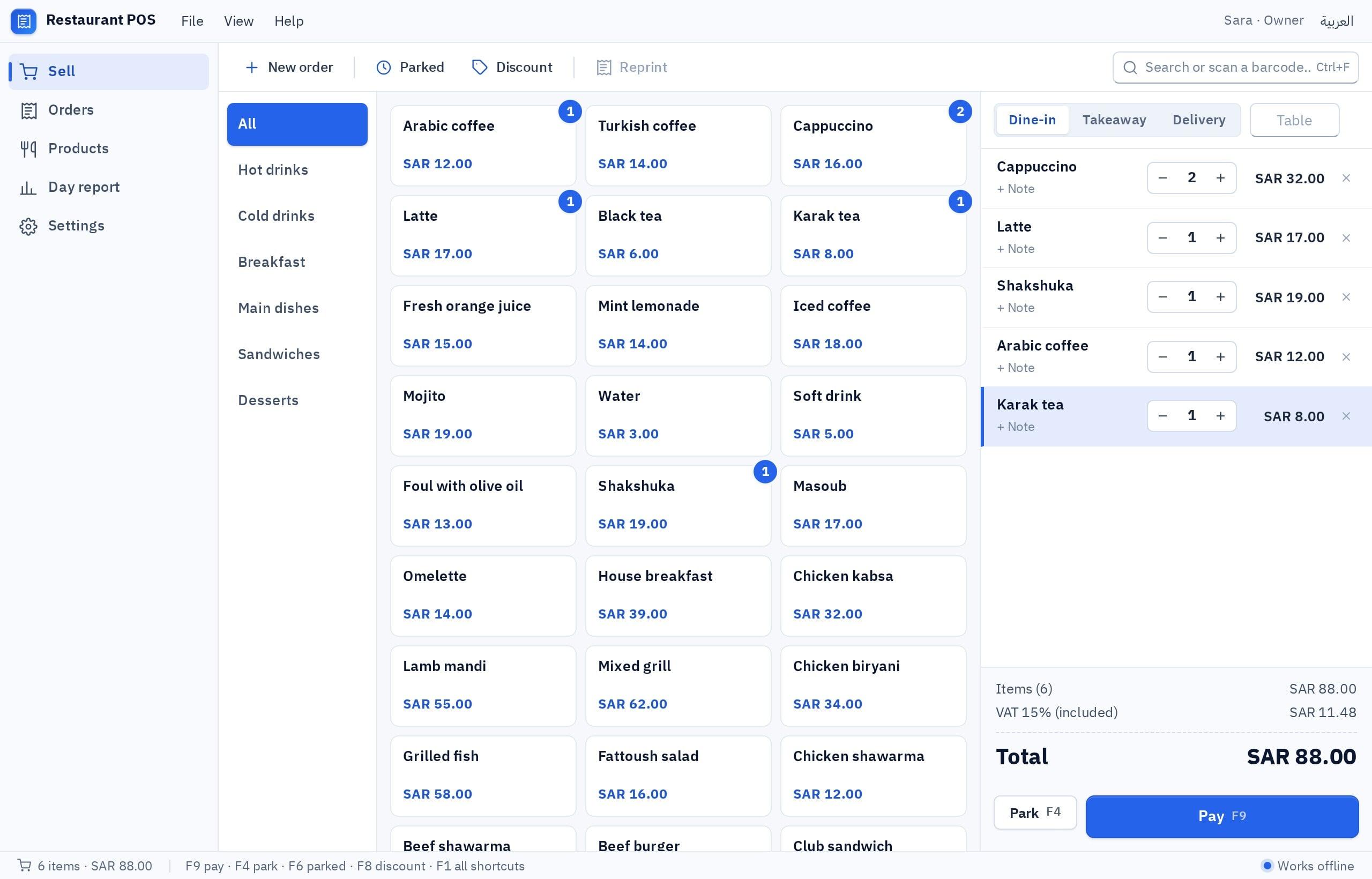
Fanann's Windows Studio includes a Restaurant POS and invoicing template: a click-to-sell screen, an open order with total and tax, a printed receipt, and today's sales report. You change it in plain words until it looks like your shop.
- 1Describe your shop
Type or speak what you sell and how you sell it. Or start from the template and ask only for the differences.
- 2Try it inside a Windows window
The program appears in your browser inside a Windows-style window. Add your items and run a full sale.
- 3Choose where the data lives
Local for one till that works offline, or cloud for several PCs.
- 4Download the installer
A real installer (.exe) for 64-bit Windows 10 and 11. Install it on the shop PC and test the printer and scanner.
I want a cashier program for a pastry shop with one counter, in Arabic (right to left) with an English option. Sell screen: categories (cakes, pastries, drinks) with large item buttons, a field where a scanned barcode adds the item, quantity changes and line removal. Selling by piece and by kilo, with the weight typed by hand. 15% VAT shown on its own line. Payment: cash with change calculated, card (recorded by hand), or mixed. A receipt printed on an 80 mm thermal printer with the shop name, VAT number, invoice number and date. Shortcuts: F2 new invoice, F4 cash payment, F8 park the order. Open a shift with a float and close it with a cash count. Two users: a salesperson, and a supervisor who alone can discount or void an invoice, with a reason. Today's report by payment method and by item. Backup to a file.
Try it in FanannWhat should I test before the first real sale?
Run the new program for a week next to your old method. Next reads: an inventory program for your shop and a cashier program in Saudi Arabia.
The best cashier program is the one the salesperson forgets about: it sells, prints and closes the drawer with no surprises.
Key takeaways
- Judge a cashier program by the number of clicks until the receipt prints, not by the length of its feature list.
- Ready-made software fits a conventional shop that wants hardware and support in one package. Building fits a specific workflow or a wish to avoid a monthly fee per till.
- One till that must sell when the internet drops needs a local database. Two tills that must see the same orders need a cloud database.
- Test your receipt printer and barcode scanner on your own PC before relying on any program.
- The daily drawer close is the most valuable report in a shop, so ask for it in the first version.
Frequently asked questions
How do I make a cashier program for my shop?
Is there a cashier program that works without internet?
Do I need a special computer for the cashier?
Does the program connect to a mada or card terminal?
Can I install the cashier on more than one PC?
How much does a custom cashier program cost?
Ask your AI assistant about this
Copy this prompt into the AI assistant you use, then add the details of your own case.
I am reading this guide: “How to make a cashier (POS) program for your shop's computer” https://fanann.com/en/blog/cashier-program-for-pc/ My question: cashier program for pc Use that page as a source and explain the answer step by step for my situation, tell me what to check before I start, and cite the page link.