Yes, you can make a system from a screenshot, if you know what a picture carries. It carries the look: colors, fonts and layout. It does not carry where data is stored, which rules apply and who may see what. Write those three things in a few sentences next to the image. In Fanann you upload screenshots in Design to App, the colors, fonts and components are read into an identity board you can adjust, and then you describe the system and get a web or mobile app that follows it.
- how to make a system from a screenshot
- turn a screenshot into an app
- can AI build an app from an image
- screenshot to code
- how do I recreate this screen as working software
- convert screenshot to website
Can you really make a system from a screenshot?
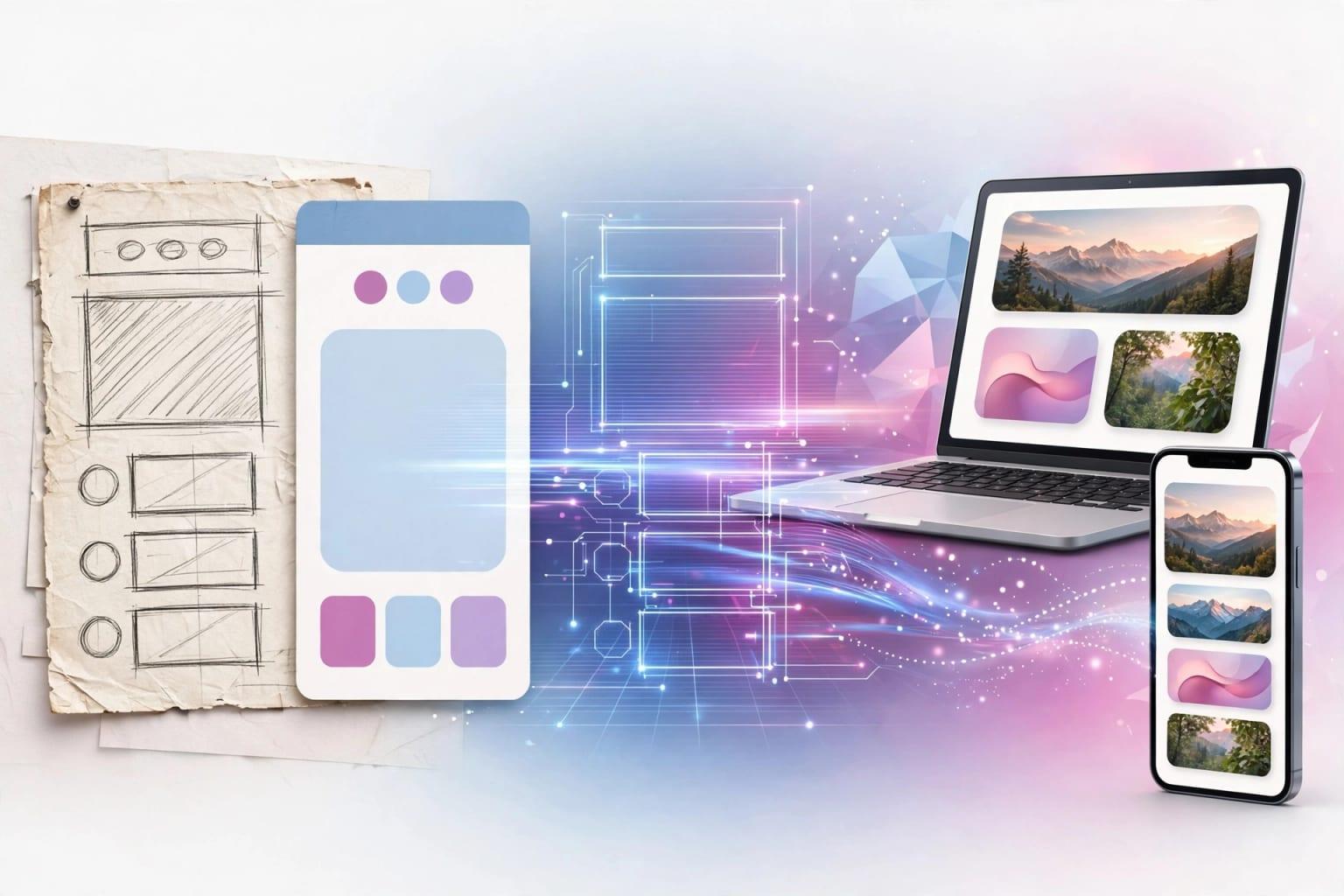
Yes, with one clarification: a screenshot saves you half the journey, not all of it. AI models read images, so a builder can tell a sidebar from a five-column table from a green button. What it cannot tell is what happens when the button is pressed. Is the order saved? Who is notified? May the new hire see it?
People who upload an image and type 'make me this' are disappointed. People who treat it the way a developer would get a working system: the picture is a reference for the look, completed by a short description of what sits behind it.
 Illustration
- What you need
- One to three clear screenshots and ten minutes of writing
- What you get
- A working system: screens, a database, sign-in and permissions
- What does not happen
- A pixel-for-pixel copy, or logic guessed from the image alone
- Where images come from
- Your current system, an old program you own, your designer's mockups, or a sketch on paper
What does the picture tell a builder, and what stays hidden?
This table is the difference between a result you like on the first try and an hour of corrections.
| Aspect | Visible in the picture? | What to do |
|---|---|---|
| Colors, fonts, corner shapes | Yes, clearly | Let the tool read them, then correct what you dislike |
| Layout and navigation style | Yes | Upload a home screen and an inner screen so the pattern shows |
| Field and column names | Yes, if the image is sharp | Make sure text is legible, and name any missing fields |
| Where data lives and how it connects | No | Write: each contract belongs to one customer and one car |
| Rules and calculations | No | Write: a contract cannot close before the odometer is recorded |
| Permissions | No | Write who can view, edit and delete |
| What happens after a click | No | Write the steps: save, notify, print, change status |
| Empty states and errors | Rarely | Ask for them: what shows when there are no results? |
A picture answers 'what does it look like?'. You answer 'what does it store, what is the rule, and who is allowed?'.
Which screenshots should you upload, and how many?
Do not upload the whole folder. Three chosen screenshots give a cleaner result, because the tool sees one consistent pattern. Pick one of each kind:
- A list screen: a table or cards with many records. It reveals the shape of the data.
- A detail or form screen: adding or editing one record. It reveals the fields and their types.
- The home screen or dashboard: it reveals navigation and priorities.
What do you need to write next to the picture?
A car rental office in Riyadh runs an old program, and the owner screenshots the 'Contracts' screen: a table with contract number, customer, car, pick-up date, return date, amount and status. The look is clear. Three questions remain.
1. What data is there, and how does it connect?
In everyday language: 'We have customers, cars and contracts. Each contract is for one customer and one car. A car has a status: available, rented, in maintenance.' Developers call this the data schema; those sentences are all it needs. To go deeper, read how to design a database for your app.
2. What are the rules?
What an experienced employee tells a new one in the first week: 'Never rent a car that is in maintenance. The amount is the number of days times the daily rate, plus 15% VAT. If the car comes back late, a penalty is charged per day. A contract cannot close before the odometer reading is recorded.'
3. Who sees what?
'Front-desk staff create and edit contracts but cannot delete. The manager sees all branches and reports. The accountant sees amounts only.' This is role-based access; see roles and permissions for staff.
How is this done the traditional way?
Before AI tools, turning a picture into a system went one of these ways, and all of them still work:
| Route | What happens | When it fits |
|---|---|---|
| Freelancer or software company | You send screenshots, they write a requirements document, then build over weeks | A complex system, or you want a party accountable under a contract |
| No-code tool | You redraw the screens by hand and wire them to tables | You have time to learn and the system is simple |
| A structured spreadsheet | You imitate the screen with sheets and columns | One person works on it and data is small |
| AI builder | You upload the screenshot, describe the logic, and refine by chat | You want a working version today and control over it |
Every route asks the same three questions; the difference is who writes the code afterwards and how long it takes. Compare in AI builder or freelancer.
How do you turn a screenshot into a system in Fanann, step by step?
Fanann has a page for this, Design to App. It separates identity from logic: images are read into an identity board you adjust, then you describe the system and it is built to follow the board.
- 1Upload your screenshots
Up to 6 reference images in PNG, JPEG or WebP. Drag them in, paste with Ctrl + V, or take a photo. Add your logo; its colors lead the palette.
- 2Add a short note
Optional: 'Blue is our main color, and we want a formal, calm feel.'
- 3Review the identity board
Reading usually takes about a minute. You get colors with calculated contrast, a font pair for Arabic and Latin text, corner and spacing style and the navigation pattern. Change anything and the live samples follow.
- 4Describe the system
Press 'Build an app with this identity', choose web or mobile, and write your three answers: data, rules, permissions.
- 5Choose 'Plan first' for systems
Fanann asks a few questions and proposes a plan you approve before building. For simple screens, 'Build now' is enough.
Build a car rental system with the layout of the uploaded screenshots: a sidebar and a contracts table with contract number, customer, car, pick-up date, return date, amount and status. Data: customers, cars, contracts. Each contract is for one customer and one car. Car status: available, rented, in maintenance. Rules: no contract for a car that is not available. Amount = number of days × daily rate, plus 15% VAT. Late returns are charged a daily penalty I set in settings. A contract cannot close before the odometer reading is recorded. Permissions: front-desk staff create and edit but cannot delete; the manager sees everything plus a monthly report; the accountant sees amounts only. Arabic right-to-left interface with phone-number sign-in. Add sample data for five cars and ten contracts.
Try it in FanannIs it OK to build from a screenshot of software you do not own?
There is a real difference between inspiration and copying, and the line is usually easy to see.
Pick the one that sounds like you to see the advice.
Build on it freely: you know the logic, and the picture saves describing the look. Hide customer data before uploading.
Ideal. Ask for the screens as images and attach the brand guide; what the guide says takes priority over estimation.
Use it as a layout reference only: where the menu sits, how cards look, how dense the table is. Then use your own logo, colors, wording and photos.
Do not. Imitating a brand you do not own invites legal trouble and misleads customers. Take the general idea and build your own identity.
A practical rule: layout patterns such as a sidebar, a table and cards are used by everyone; names, logos, wording and images belong to their owners. If unsure, ask a legal professional.
What should you do after the first version appears?
The first version works, but it has not lived through a real working day. Spend half an hour on this check before handing it to staff:
- Enter five real records, not sample data.
- Try every rule: rent a car that is in maintenance and confirm the system refuses.
- Sign in as each role and confirm staff cannot see what is not theirs.
- Open it on a phone and check the tables.
- Compare with your original screenshot and note only the differences that matter.
Then refine. For look, use visual editing, explained in change your app by pointing at it. For logic, write one request per rule, as in build one feature at a time.
Old data in Excel? Do not retype it: read how to turn an Excel sheet into a real system. Replacing an old desktop program entirely? See rebuild an old system from pictures of its screens.
Key takeaways
- A screenshot carries look and layout, not data, rules or permissions; those you write yourself.
- Three chosen screenshots beat twenty: a list screen, a detail or form screen, and a home screen.
- For each screen, answer three questions in writing: what data, which rules, who is allowed.
- Use screenshots of your own systems, or other products only as layout inspiration; never copy a brand or content you do not own.
- The first version is a starting point: test it with real records, then refine it screen by screen.
Frequently asked questions
Can AI build a complete app from a single image?
How many screenshots do I need?
Will the result match the picture exactly?
Can I use a screenshot of a well-known app?
Which image formats are accepted?
Do I need programming experience?
Ask your AI assistant about this
Copy this prompt into the AI assistant you use, then add the details of your own case.
I am reading this guide: “How to make a system from a screenshot: picture to working app” https://fanann.com/en/blog/make-a-system-from-a-screenshot/ My question: how to make a system from a screenshot Use that page as a source and explain the answer step by step for my situation, tell me what to check before I start, and cite the page link.