You can rebuild an old system from pictures of its screens in four steps: inventory and capture the screens; write each screen's fields, rules and users; export the old data to Excel or CSV; then build the new system and run it beside the old one for about two weeks before switching off. Pictures carry fields and workflow, not hidden calculations or data. In Fanann you build a web system from a description with the screenshots attached, import your records through Excel to App, and use Windows Studio if you need a program that works offline.
- how to rebuild an old system
- convert access database to web app
- modernize legacy software for a small business
- replace old desktop program with a web app
- recreate old software from screenshots
- migrate from access to a modern system
Can you rebuild an old system from pictures of its screens alone?
Many companies run a fifteen-year-old program: an Access database made by a former accountant, a package from a vendor that closed, or an Excel file with macros nobody dares touch. It works, but on one machine, never from a phone.
The question that stalls everyone: 'How do we rebuild it when nobody knows how it was built?' You do not need the old code. You need to know what the system does, and its screens tell you that better than any document. Pictures give you roughly two thirds of the requirements; the rest is with the employee who uses it daily.
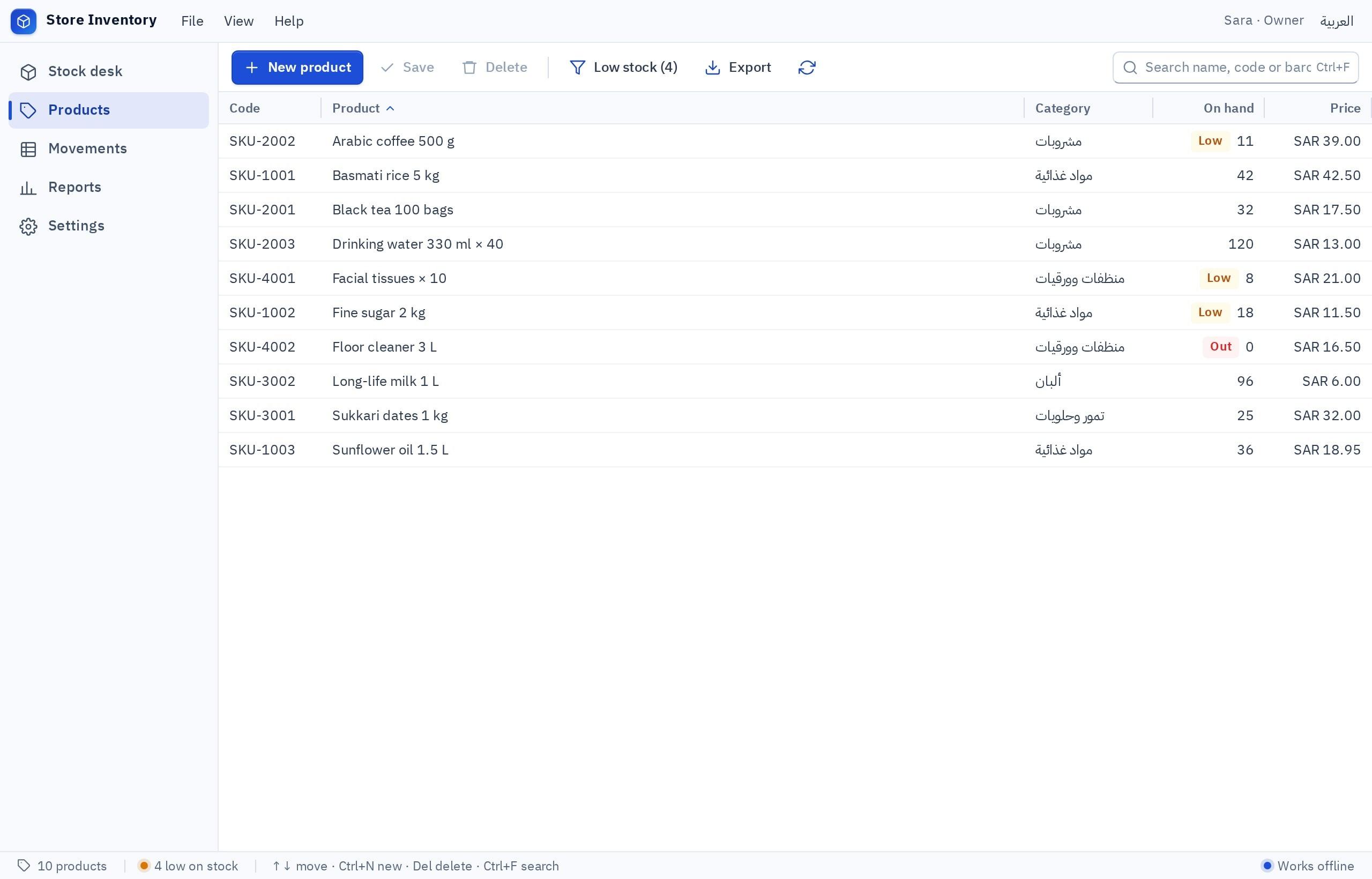
- What pictures carry
- Fields, screen order, reports, the team's vocabulary
- What they do not
- Data, hidden calculations, permissions
- What you do not need
- The old source code or the original developer
- Most important person
- The employee who uses the system every day
What do old screens reveal, and what do they hide?
A building materials trader in Dammam has run a 'Sales and Store' program on Access since 2009. Its 'Sales invoice' screen alone reveals a lot:
| What you see | What you infer | What you must ask |
|---|---|---|
| 'Customer' is a dropdown | There is a separate customers table | Can a new customer be added from the invoice? |
| 'Credit limit' is grayed out | A value that is fetched or calculated, not typed | What happens when a customer exceeds it? |
| A lines table with quantity, price, discount | An invoice has many lines | Who may give a discount, and up to how much? |
| A 'Post' button | An invoice is a draft, then posted | What changes after posting? Does stock go down? |
| Invoice number starts with a year | Sequential numbering with a rule | Does it restart yearly? One sequence per branch? |
| A 'Print' button | A printed form exists | What does the printout look like? Capture it too |
The third column matters most. Each question is a rule buried in the old system, written years ago and then forgotten. Such rules only show up when they vanish: the first day the new system sells to a customer over their limit.
How do you capture and inventory the old system?
Sit for two hours with the longest-serving employee while they run a full working day in front of you. Capture every screen they open, in order.
- 1Take a screenshot, not a photo
On Windows use Win + Shift + S or Print Screen. On a very old or locked-down machine, a straight-on phone photo is fine if the text is readable.
- 2Number images in working order
01 login, 02 main menu, 03 sales invoice, 04 item search. The order itself describes the workflow.
- 3Capture each screen full and empty
Full shows the shape of the data; empty shows required fields and default values.
- 4Open every dropdown
Its values are the allowed options: payment types, order statuses, branches.
- 5Record a voice note per screen
Ask the employee: when do I open this? What annoys me about it? What do I do outside the system on paper?
What about the data stored inside the old system?
Pictures move no records. Ten years of customers, items and invoices need another route: export, then import.
| Data source | How to get it out | Note |
|---|---|---|
| Access | Export each table to Excel from the external data menu | Export tables, not queries |
| An old .xls Excel file | Open it and save as .xlsx | Legacy and password-protected files are not read on import |
| A packaged desktop program | Look for 'Export' under reports or tools | If there is none, ask the vendor or a database specialist |
| No export at all | Reports printed to a file, or manual entry of current balances only | Start from an opening balance rather than all history |
Do you move all history? Usually not. Move live data: customers, items, current balances and open invoices, and keep the old system read-only for lookups. How to clean a file before import is in how to turn an Excel sheet into a real system.
Should the new one be a web system or a Windows program?
The old system was a desktop program because that was what existed then. Ask the question afresh.
Pick the one that sounds like you to see the advice.
A web system. It opens in any browser and on phones, everyone shares one set of data, and the manager can follow from anywhere.
A Windows program with a local database: it works offline on that PC, and backups are your responsibility.
A Windows program with a cloud database shared between the PCs, which needs internet and sign-in. Or a web system opened in the browser on the same machines.
Start with a web system: the easiest to try, change and reach. Decide later whether a desktop program is really needed.
For the full comparison, read desktop app or web app and local or cloud database.
How do you rebuild the system in Fanann?
Three entry points; pick by what you have:
- From a description with the screenshots: write your inventory screen by screen in the chat and attach the images, and a web system is built. Chat attachments are available on paid plans; without them, type the field names.
- [Excel to App](/{lang}/excel-to-app/): upload the .xlsx or CSV you exported; columns and their types are understood, and a system is built with screens, forms, reports and roles, your rows imported from the first moment.
- [Windows Studio](/{lang}/ai-windows-app-builder/): if the decision is a desktop program, describe it, see it running in a window in the browser, choose where data lives, then download an installer for Windows 10 or 11.
We are rebuilding the old 'Sales and Store' program of a building materials company as a modern Arabic web system. The attached images are its screens in working order; take the fields and step order from them, not the look. Screens: customers, items, sales invoice, receipt voucher, stock movement, customer statement, monthly sales report. Data: customers each with a credit limit and balance; items with unit, price, quantity and minimum level; invoices with lines; receipt vouchers; branches. Rules: an invoice is a draft, then posted; posting reduces stock and raises the customer balance, and afterwards it can only be changed by a credit note. A credit invoice that exceeds the credit limit cannot be posted without manager approval. Discounts above 10% are manager-only. Invoice number: year, then a sequence per branch. 15% VAT shown on the invoice. Roles: salesperson, storekeeper, accountant, manager. Alert when an item falls below its minimum. A printable A4 invoice form.
Try it in FanannWhat should you not carry over from the old system?
'Exactly like the old one' is tempting, because staff are used to it. But part of what they are used to is workarounds for flaws that no longer exist.
- Field names and the terms the team uses
- The order of work that has proven itself
- Accounting, credit and discount rules
- Keyboard shortcuts for fast entry
- The printed invoice layout customers know
- Screens not opened in years
- 'Notes 2' and 'Spare' fields stuffed with data
- One password shared by everyone
- Typing the same number on two screens
- The gray look and tiny font
And add what was never possible: a sign-in per employee with their own permissions, a log of who changed what, and access from a phone. Role details are in roles and permissions for staff.
How do you move from old to new without stopping work?
- Week 1Inventory and export
Capture screens, write the rules, export tables and clean the files.
- Week 2Build and review
Build the system, then let the longest-serving employee run a full working day on it and list what is missing.
- Week 3Parallel run
Enter transactions in both systems for a few days. Compare at each day's end: total sales, stock, customer balances.
- Switch dayFinal import, stop entry in the old one
Pick a month end or a quiet start of week. Export and import final balances, then make the old system read-only.
- A month laterArchive the old system
Take a full backup of the old system and keep it. Do not delete it before a full month-end close has passed on the new one.
If the numbers match three days running, the new system is ready. If they differ, the gap points to a hidden rule you have not written yet. Before switching, go through how to test a website before launch.
Key takeaways
- The old system's screens are your most accurate requirements document: the fields and the real order of work.
- Carry over what the system does, not how it looks; the old gray look is not worth copying.
- Pictures hold no data: export tables to .xlsx or CSV and import them.
- Ask the longest-serving employee about hidden rules and calculations no screen shows.
- Run old and new side by side briefly, and compare a full day's numbers before switching off.
Frequently asked questions
Do I need the old program's source code?
How do I move data out of Access?
Will the new system work offline like the old one?
Should I move all historical data?
What if the old program belongs to a software vendor?
How long does the move take?
Ask your AI assistant about this
Copy this prompt into the AI assistant you use, then add the details of your own case.
I am reading this guide: “How to rebuild an old system from pictures of its screens” https://fanann.com/en/blog/rebuild-an-old-system-from-its-screens/ My question: how to rebuild an old system Use that page as a source and explain the answer step by step for my situation, tell me what to check before I start, and cite the page link.